
Add Figma to Plate
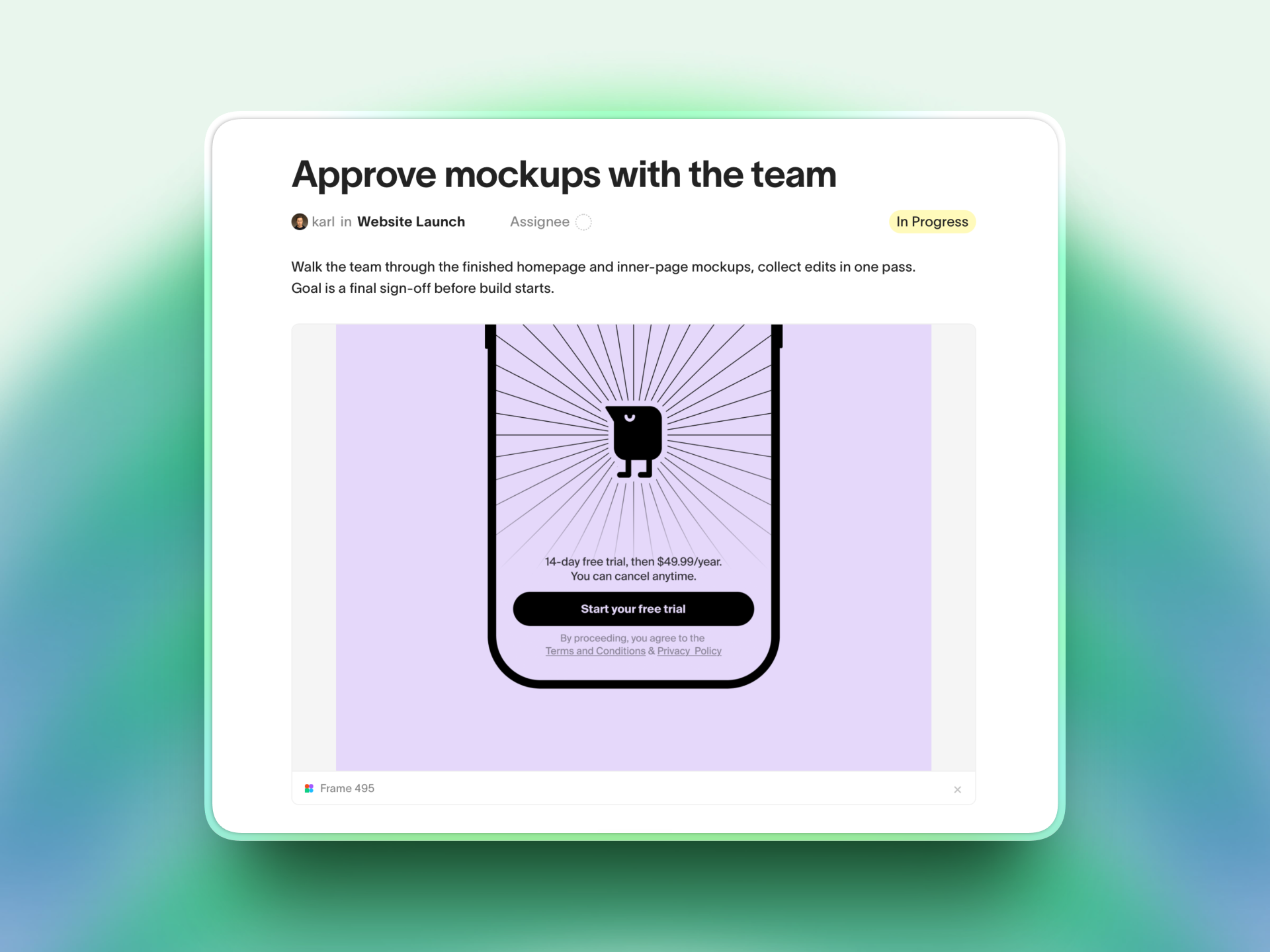
Connect your Figma account once, then paste any Figma frame URL into a task description or comment to embed a live artboard preview.
Connect Figma
In Plate, open Workspace Settings → Integrations.
In the Figma card, click Connect with Figma.
If you don't see the button, you're not a workspace owner — ask an owner to connect Figma for the workspace.
A Figma authorization page opens. Sign in if needed and click Allow access. Plate requests read-only access to your file content and metadata — it can render frames but never edit your designs.
You're returned to Plate and the Figma card shows a Connected badge. That's it — embedding is now live for everyone in the workspace.
Permissions Plate requests
| Scope | What it allows |
|---|---|
file_content:read | Render an image of a frame so it can be shown inline. |
file_metadata:read | Read the frame and file name, and the last-modified time shown under each preview. |
Both scopes are read-only. Plate cannot create, change, or delete anything in your Figma files.
Embed an artboard
Once Figma is connected, embedding takes no special syntax — just paste a frame URL on its own line:
In Figma, select a frame, then right-click and choose Copy/Paste as → Copy link to selection (or copy the URL from the address bar with a frame selected).
In Plate, open a task and paste the link into the description or a comment on its own line.
The link turns into a live preview of that artboard. Click the preview to open it full-size in a lightbox; the frame name, file name, and last-modified time appear underneath.
A frame URL looks like this — note the node-id parameter, which points to the specific frame:
https://www.figma.com/design/AbC123/My-File?node-id=1234-5678
node-id. That parameter identifies the exact frame to render. A plain file link without it (e.g. figma.com/design/AbC123/My-File) can't be previewed — use Copy link to selection so the frame is included. design, file, and proto links are all supported.
To turn a preview back into a plain link, click the × in its footer.
Disconnect
A workspace owner can disconnect Figma at any time from Workspace Settings → Integrations by clicking Disconnect on the Figma card. After disconnecting, existing previews stop loading and show a placeholder; the underlying links are kept, so reconnecting restores them.
If a preview shows "Session expired — workspace owner needs to reconnect Figma in settings," the stored Figma authorization has lapsed. A workspace owner just needs to click Connect with Figma again.
Questions? Write to us at hello@plate.to