
Add Slack to Plate
Bring Plate into the channels where your team already talks: get task updates in a channel, create tasks from any message, and ask the @plate agent about your work — without leaving Slack.
Channel notifications
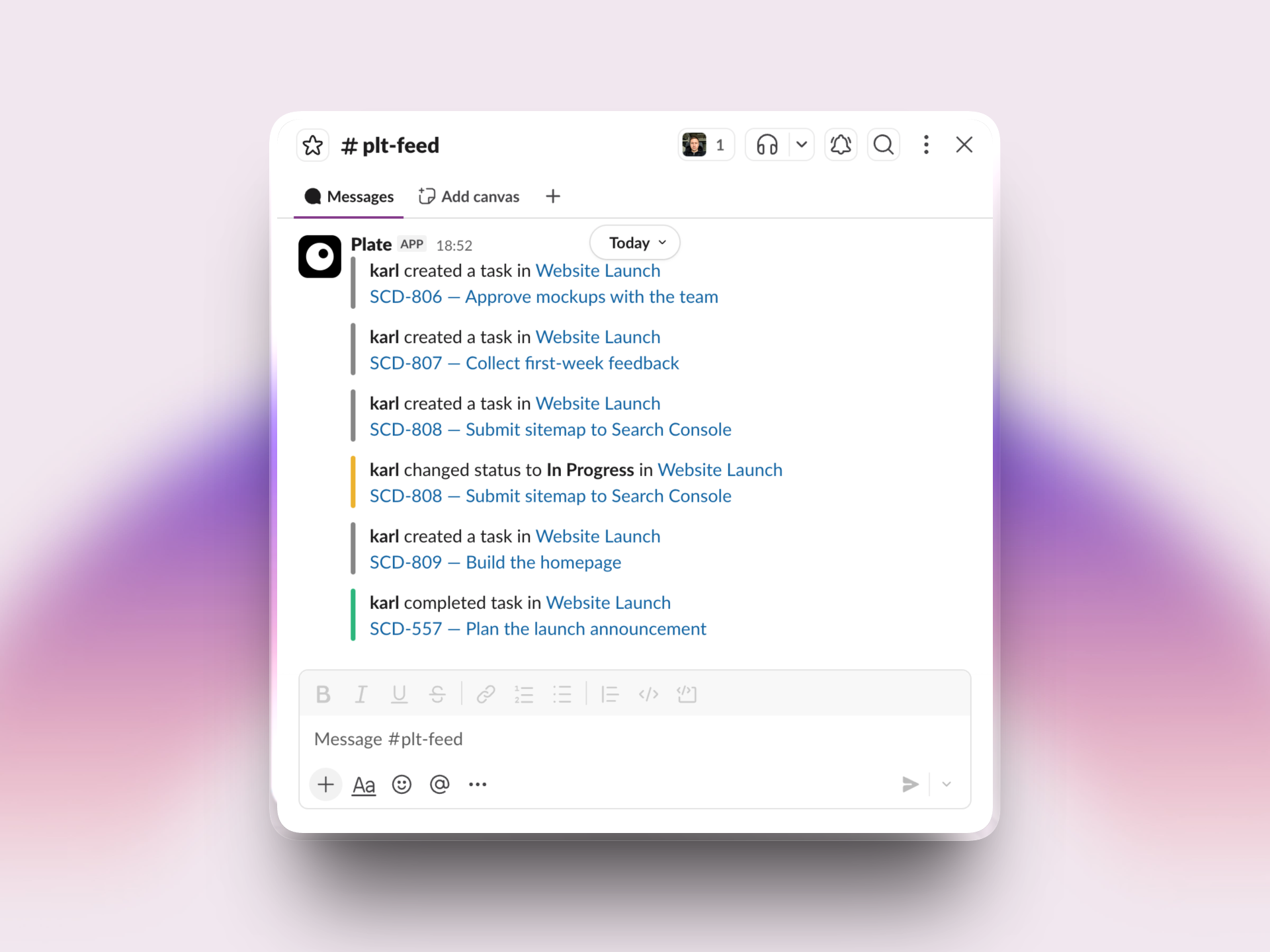
Plate posts a short card whenever a task is created, changes status, or is closed — two lines: who did what in which project, then the task as a link.
Every update across the whole workspace goes to the one channel you picked at install — no per-channel or per-project setup. To change the channel, disconnect and reconnect Slack and pick a different one.
The event set is deliberately short — no noisy per-status toggle matrix.
Create tasks from Slack
Two ways to file a task without opening Plate:
Slash command
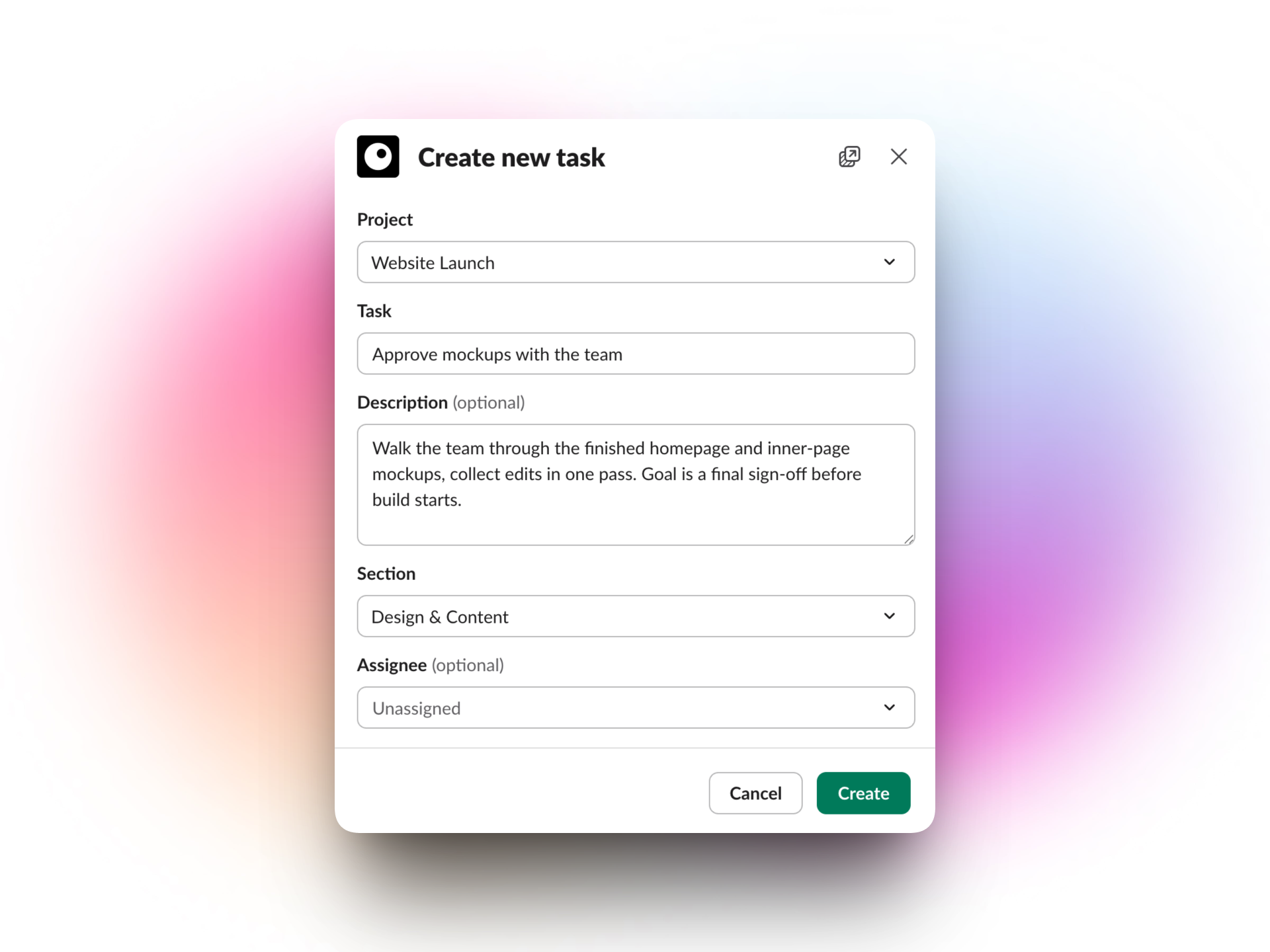
Type /plate <task name> — for example /plate Fix the signup redirect. A dialog opens to choose the project, edit the name, add an optional description, pick a section and an assignee. Plate confirms the new task right where you ran the command.
From a message
Hover any message → ⋯ More actions → Create new task…. The message text becomes the task name (Slack mentions are stripped), a link back to the original message is saved in the task's description, and any image attached to that message is added to the task.
Ask the @plate agent
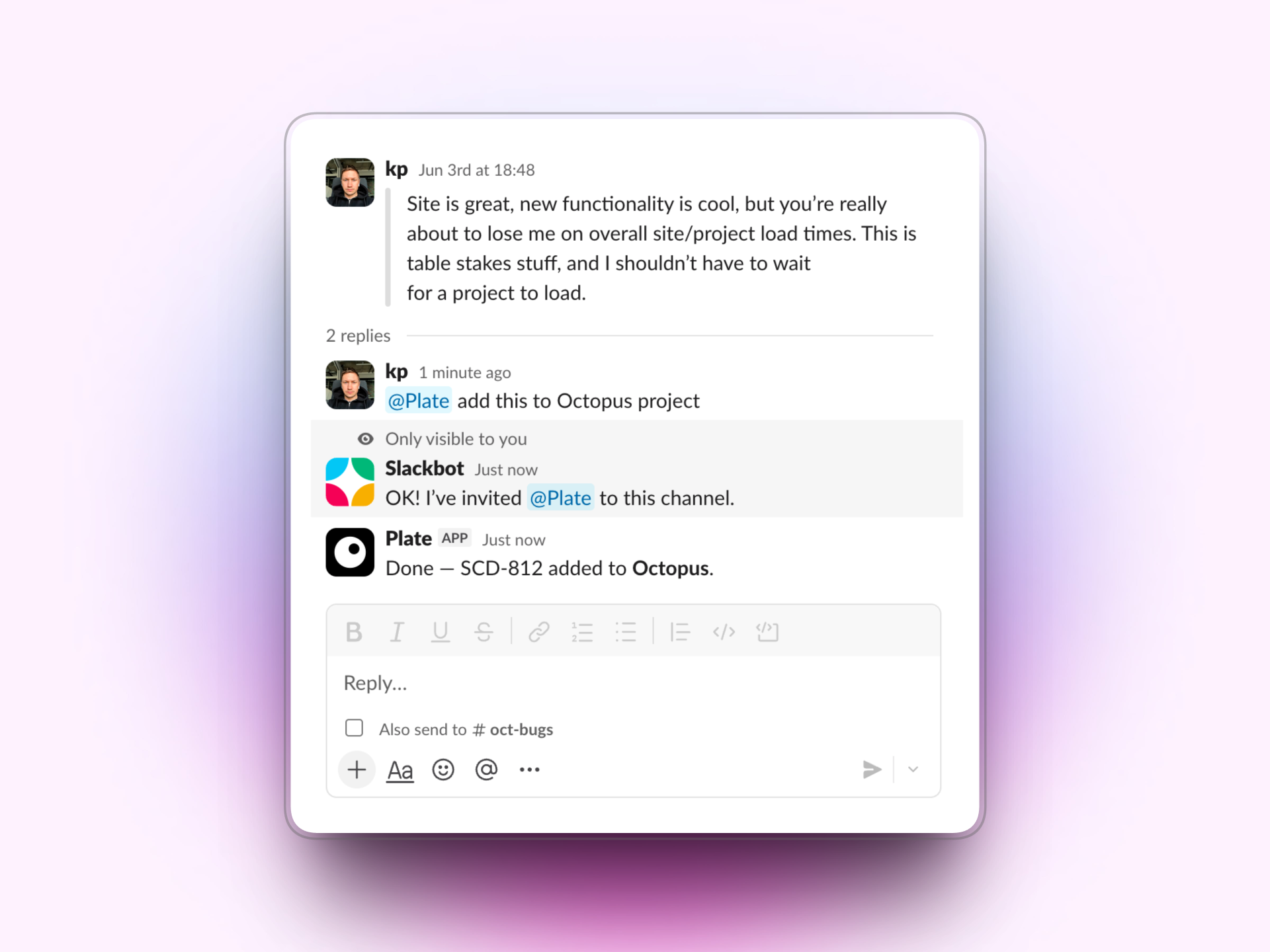
Mention @Plate in any channel the bot is in to ask about your work. The agent sees your whole workspace — every project — and answers in a thread.
- Ask questions: "@Plate how many open tasks are there?", "@Plate what changed in Marketing last week?", "@Plate what's assigned to me?"
- Create tasks: "@Plate add a task to review the new landing page" → the agent posts a project picker; choose a project and it creates the task there, attributed to you.
The agent is grounded in your real project data and never invents tasks or people. It can answer and create tasks, but a human stays in control — it never completes, closes, reassigns, or deletes anything.
Install the app (owner)
In Plate, open Workspace Settings → Integrations.
In the Slack card, click Add to Slack.
If you don't see the button, you're not a workspace owner — ask an owner to connect Slack.
Slack asks you to approve the Plate app and to pick a channel for notifications. Choose where Plate should post workspace updates, then click Allow.
You're returned to Plate and the Slack card shows a Connected badge. Every task update (created / status change / closed) across the workspace now posts to the channel you picked.
Command reference
| Command | What it does |
|---|---|
/plate | Show the list of commands. |
/plate <task name> | Create a task (opens a project / section / assignee dialog). |
@Plate <question> | Ask the agent about your workspace, or ask it to create a task. |
| Create new task… (message action) | Create a task from a message, with its image attached. |
Disconnect
A workspace owner can disconnect Slack at any time from Workspace Settings → Integrations by clicking Disconnect on the Slack card. This removes the connection and every member's cached email match for the workspace.
Questions? Write to us at hello@plate.to